
HAVOC IT guide
Internet not working? What to check before calling for help
From one computer to the whole network: how to find out what has stopped working and what to check before changing settings.
Published:
“The internet isn't working” is one of the most common problems in an office. It is also one of the descriptions that tells us the least about what has happened. Is just one computer offline? Has the Wi-Fi stopped working? Are all the computers affected? Or is the internet working, but a particular website or application cannot connect?
Before trying to fix anything, we need to answer a simpler question: what exactly isn't working? It may sound like a small change in wording, but this is where diagnosis begins. Knowing what still works and what has stopped working quickly narrows down the possible causes.
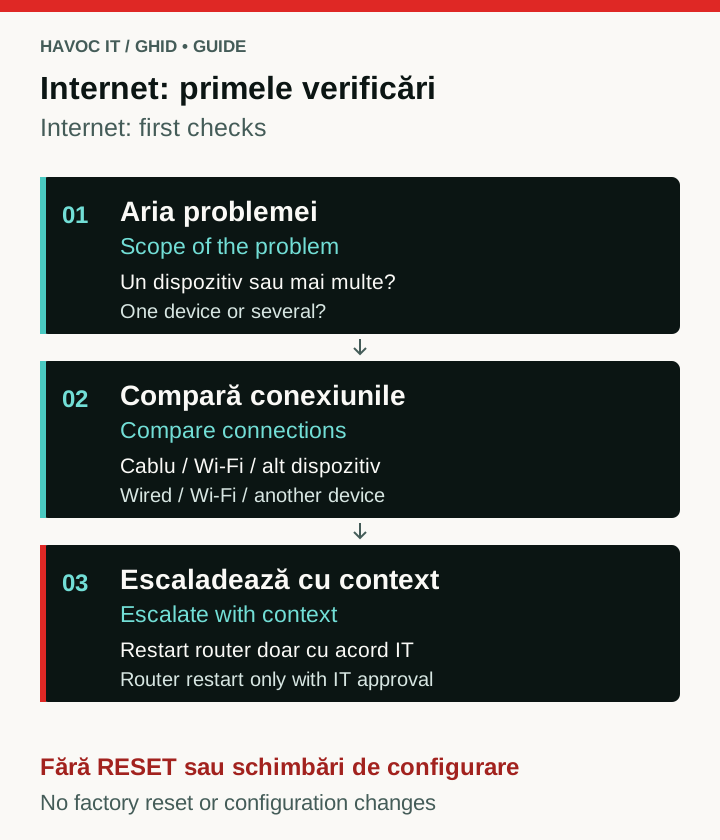 Open the full-size diagram (new tab)
HAVOC IT explanatory diagram: observations help narrow down the issue. They do not establish a diagnosis or replace IT approval for a restart.
First, check whether the problem affects only you
Suppose you are at your computer and cannot open any web pages. Before heading for the router, try another device. If you have a laptop connected to Wi-Fi, use that. A phone works too, but make sure it is connected to Wi-Fi and is not browsing over mobile data.
If the other device can access the internet, we already know something useful: an internet connection is available, so we need to look closer to your computer. If the second device cannot connect either, try one more or ask a colleague whether theirs works. If the answer is “no” everywhere, we are investigating the network rather than a single computer.
In less than a minute, we have separated two problems that initially looked identical. This is where time is saved: by looking in the right place.
If only your computer is offline
Other devices are working, so the next question is: how is your computer connected to the network? In most offices, desktop computers use a network cable. Laptops more often use Wi-Fi, but neither is a fixed rule. A laptop might connect through a cable or docking station, while a desktop might have built-in Wi-Fi or a USB Wi-Fi adapter.
Check the connection you are actually using, rather than the one you assume you are using.
If you use a network cable
Start at the computer. Check that the network cable is fully plugged in. If the computer's network port has LEDs, see whether they are lit or flashing. You can unplug the cable from the computer, wait a few seconds and plug it back into the same port.
This is not the moment to head for the switch and start moving cables between ports. In an office, the same switch may connect computers, printers, access points, phones and other devices. Changing things before we know what we are looking for can create a second problem without fixing the first.
If you use Wi-Fi
Check that Wi-Fi is switched on and that your device is connected to the correct network. If you use a USB Wi-Fi adapter, check that it is plugged in too. Switch Wi-Fi off, wait a few seconds and switch it back on.
If that does not help, restart the computer, whether you use a cable or Wi-Fi. Yes, the familiar restart has become something of an IT joke, but we keep suggesting it for a reason. A network adapter, driver or operating system service can temporarily stop responding, and a restart may be enough to recover it.
If the other devices still have internet access after the restart and yours does not, we have learnt something more precise. The problem is now “this computer is not connecting to the network correctly”. That is a much more useful diagnosis and tells us where to continue investigating.
If nobody has internet access
If neither the wired computers nor the devices on Wi-Fi can access the internet, they are unlikely to have developed the same fault at exactly the same time. We need to look for something they share: the network they use to reach the internet.
Now it makes sense to look at the router and, if it is a separate device, the equipment supplied by your internet provider. You do not need to open the administration page or change any settings. Simply check whether the equipment is powered on, whether the LEDs look roughly as they usually do, whether a red light has appeared or whether a light that is normally on has gone out.
If something looks unusual, take a photograph. If you need to speak to your provider or the person who manages the network, a photo can be much more useful than trying to explain over the phone which of the “little lights” is flashing.
Do not press RESET on the router
There is an important distinction here: a restart and a RESET are different things. A restart switches the equipment off and back on. RESET may restore factory settings and erase the existing configuration.
Think about what we know so far. The internet is not working, but we do not yet know whether the router is the cause. The provider could have an outage, another device could have a fault, or there could be a temporary interruption.
Erasing the router's configuration before we know any of that gains us nothing. Instead, we can go from a connection that does not work to a connection that does not work and a router that needs configuring again.
You can, however, restart the router
In a managed office, restart the router only with the IT owner’s approval and after notifying everyone affected. Even without internet access, some connections or local services may still be working. If you do not have approval or do not know what the equipment serves, stop at recording your observations and contact IT.
If nobody has internet access, the equipment is powered on and there is no obvious issue, you can try a restart. Disconnect the router's power, wait around 20–30 seconds, reconnect it and give it a few minutes to start up and re-establish its links to the rest of the network and the provider.
There is no need to unplug every cable at the back. In an office especially, those cables may lead to other important equipment. If you do not know exactly where each one goes, the safest place for it is where it is already connected.
Once the router has fully started, check the connection again. If internet access returns and the problem does not recur, it may have been a temporary interruption or an unresponsive device. If you have to do the same thing every day, that is a different situation. A router you need to unplug daily has not been repaired; it has only been brought back temporarily.
Does Wi-Fi work while the wired computers are offline?
If laptops and phones connected to Wi-Fi can access the internet but several wired computers cannot, we already know an internet connection is available. The problem may be on the wired side of the network: a switch, a link between devices or something else shared by those computers.
The reverse can happen too. If wired devices work normally but Wi-Fi devices do not, the provider's connection is not the first suspect. The problem may be with the wireless router, an access point or the Wi-Fi part of the network.
Again, we have not fixed anything yet, but we have done something just as useful: we know where to look next.
What if nothing works?
We have checked several devices. There is no internet access over either a cable or Wi-Fi. The equipment is powered on, and restarting the router has not restored the connection. Before changing DNS servers, IP addresses or other settings, it is worth asking one more question: what if the problem is outside the office?
Providers have outages too. Use your phone's mobile data to check for a reported problem in the area, or contact support. This time, though, you have more to report than “the internet isn't working”.
You can say: “None of our devices has internet access. We have checked both wired computers and devices on Wi-Fi. We restarted the router, but the connection has not returned.” If you noticed a red LED or anything else unusual on the provider's equipment, mention that too.
You do not have to diagnose the provider's fault for them. But accurate information can make the route to a solution considerably shorter.
Why not start with fixes found online?
Search for “internet not working” and you will quickly find suggestions to change DNS servers, reset the network adapter, run various commands, reinstall the driver, change the IP address or reset the router. Any of these actions could be a solution.
The question is: a solution to which problem?
If one wired computer is not working, why reset the router for the whole office? If all the wired computers are having problems but Wi-Fi works, why change the settings on a single computer? And if neither wired nor Wi-Fi devices work because the provider has an outage, what would reinstalling drivers achieve?
A technical fix is not the right one simply because it worked for somebody else once. It needs to match the problem you have.
What should you do next time “the internet isn't working”?
Do not start by changing settings. Start by finding out whether the problem affects one device or several, and whether they use a cable or Wi-Fi. Compare what works with what does not, then check the equipment shared by the affected devices. If the whole network is down, check the router and whether the provider has reported any problems.
You do not have to be a network administrator to make these checks. You just need to avoid trying to fix everything at once. “The internet isn't working” is the starting point of an investigation, rather than a diagnosis.
The first troubleshooting question is “What exactly isn't working, and what still works?” Asking that before “Which setting can I change?” will often lead you to the problem.
If outages keep returning or affect the whole office, see how we manage office networks and IT security.
Sources
Do network problems keep returning or affect the whole office?
During the initial assessment, we can clarify where connection problems occur and what needs checking in your office network.
Request your free initial IT assessment