
HAVOC IT guide
Printer not working? 10 checks before asking IT for help
From power and paper to the print queue: what you can safely check before asking for help.
Published:
Printers have a particular talent: they never fail when you have time to spare. They stop working just as a contract needs to go out, an invoice needs to be printed, or someone is standing beside you asking for the third time, “Did it print?”
You press Print and nothing happens. You press it again, because some part of us believes the second click will be more persuasive than the first. A few minutes later, you discover seven copies of the same document in the queue and start treating the printer as a personal opponent.
Before unplugging everything, reinstalling Windows or calling IT, there are a few safe checks worth making. Many printing problems can be narrowed down—or solved—in a few minutes.
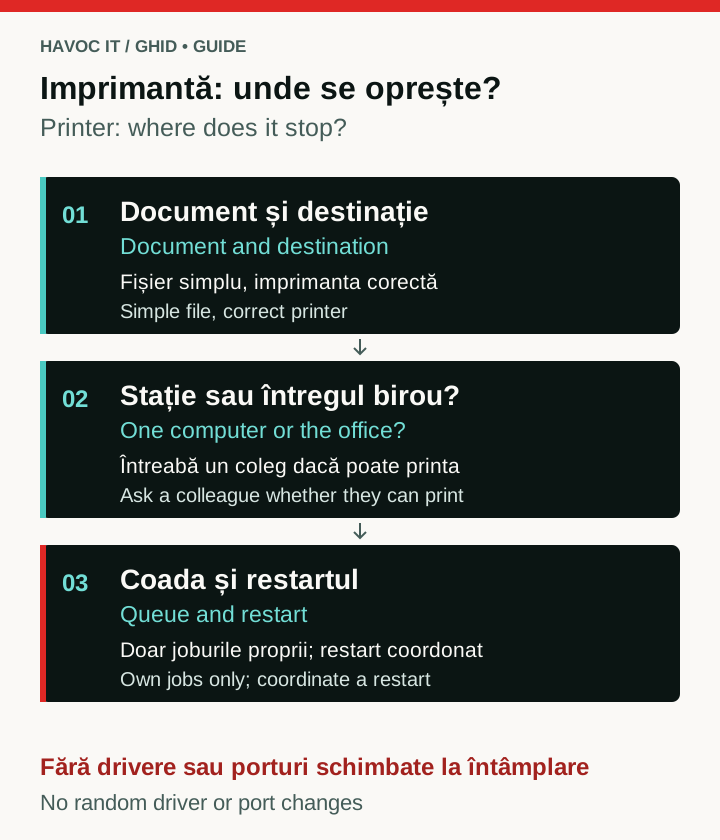 Open the full-size diagram (new tab)
HAVOC IT explanatory diagram. Change one thing at a time; colleagues’ jobs and restarts on a shared printer need separate coordination.
1. Start with the obvious
We know. “Is it switched on?” can sound almost insulting. But simple explanations deserve to be ruled out before complicated ones are introduced.
Check whether the display is lit or an indicator light is active. Look at the power lead, extension lead and socket. In an office, one cable pulled out during cleaning can generate a surprising amount of technical investigation.
If the printer shows no sign of life, changing settings on the computer will not help yet. First find out why the device is not starting.
2. Look at the printer before looking at the computer
Most modern printers do try to explain what is wrong. We simply have a habit of ignoring the display and heading straight for Windows settings.
You may see Paper Jam, No Paper, Replace Toner, Cover Open, Offline or a network error. If the printer says paper is stuck inside, reinstalling a driver will not persuade it to forget the paper.
Read the message, check the trays and see whether the device is asking for a simple intervention. The answer is often right in front of you.
3. Check the paper. Yes, the paper.
A printer can contain paper and still refuse to print. Some models have several trays, while the document may be assigned to an empty tray or a different paper size.
Make sure the paper is loaded correctly and that the printer is not waiting for A3 while only A4 is available. Do not dismiss messages about paper size or type.
It is the kind of problem that looks sophisticated until you open the correct tray.
4. Make sure you are printing where you think you are
In offices with several devices, documents are often sent to the wrong printer.
Look at the selected device in the print dialogue. It may be the printer upstairs, an old queue nobody uses, or the ever-reliable Microsoft Print to PDF.
If your document suddenly appears in the next office, the mystery is over. The printer beside you was not broken. It had never received the job.
5. Does Windows show the printer as “Offline”?
In Windows 11, open Settings → Bluetooth & devices → Printers & scanners and find the printer.
An Offline status is already useful evidence. For a USB printer, check the cable and port first. For a network printer, the break may sit between the printer and the network or between your computer and the printer.
This is not the moment to change IP addresses or edit ports. For now, the aim is only to understand where the connection stops.
6. Try printing something else
Sometimes the printer is fine and the document is the problem.
Close the original file and test something simple: a fresh Word page, a small PDF or a Windows test page.
If the simple document prints and the original does not, the investigation has moved. The application or file now deserves attention, not the printer.
This is a useful troubleshooting rule: change one thing at a time and see whether the problem moves with it.
7. Inspect the print queue
Pressed Print several times with no result? The first job may be stuck while every later copy waits patiently behind it.
Open the Print Queue and inspect the jobs. If several of your own jobs are blocked, cancel only those jobs and send one document again. On a shared printer, do not cancel colleagues’ jobs or clear the entire queue; ask IT for help if someone else’s job is blocking printing.
This is often where the seven identical copies appear—the seven moments when the Print button seemed not to understand your intention.
8. The question that shortens troubleshooting: can anyone else print?
If several people use the printer, ask a colleague to try.
If nobody can print, the printer or network is a likely place to look. If everyone else can print and only you cannot, the problem is much more likely to be on your computer.
It sounds simple, but the answer changes the direction of the investigation. It is also one of the first questions an IT person will ask.
“Can anyone else print?” is not a delaying tactic. It is one of the quickest ways to learn where the fault might be.
9. Yes, a restart is worth trying
Restarting has an almost comic reputation in IT, but it is recommended so often for a reason: it clears many temporary stuck states.
For a shared printer, coordinate the restart with the person responsible and your colleagues so that you do not interrupt their work. Turn the printer off normally, wait a few seconds and switch it on again. If the issue remains and affects only your computer, restart the computer as well.
Do this deliberately. Do not pull the plug while the printer is working and hope for technological enlightenment.
10. Know when to stop
The internet offers a solution for everything. Some advice is excellent. Other advice begins with “open Registry Editor” and ends with a printer nobody can use.
If a tutorial asks you to edit the registry, manually remove drivers, change IP addresses, modify TCP/IP ports, perform a factory reset or enter administrative menus without understanding the existing configuration, you have probably moved beyond simple troubleshooting.
We follow a useful rule here: if you do not know exactly what a setting changes and how to restore the original state, do not change it just because an online comment says, “It worked for me.”
A printer that will not print is irritating. A printer whose network configuration has been erased and which now works for nobody is more irritating.
What are we actually trying to learn?
Troubleshooting is not pressing random controls until something starts working. It is the process of eliminating possibilities.
Is it powered on? Is the display clear of errors? Is paper loaded? Is the correct printer selected? Does Windows see it online? Can another document print? Can another colleague print?
Each answer removes part of the uncertainty.
Even if you do not solve the issue yourself, you reach a far better starting point for the person helping you.
Instead of calling to say only:
“The printer isn't working.”
you can say:
“It is powered on, there is no error on the display, my colleagues can print but my computer cannot, I tried another document and cleared the print queue.”
That information is extremely valuable to whoever has to troubleshoot the problem. It removes many of the opening questions and often shortens the route to a solution.
The goal is not to turn you into a systems administrator.
The goal is to handle the simple checks safely and recognise when the problem is no longer simple.
For issues that need further troubleshooting, learn about our outsourced helpdesk and IT support for your team.
Sources
Does the problem keep returning or affect several computers?
During the initial assessment, we can clarify the extent of the printer problems and what needs technical verification.
Request your free initial IT assessment