
HAVOC IT guide
Computer running slowly? What you can check before calling IT
Restart, Task Manager, RAM, storage and applications: safe checks before asking for help.
Published:
“My computer is running slowly” is probably one of the most common descriptions anyone working in IT hears. The problem is that it can mean almost anything: too little RAM, an overloaded HDD, too many programs starting with Windows, a process consuming all the available resources, or simply a computer that can no longer keep up with how it is being used.
We have encountered all of these situations. So before installing a program that promises to “optimise your PC”, deleting things at random or deciding that you need a new computer, it is worth asking a few simple questions.
The aim of this guide is not to turn you into a technician. It is to help you understand what is happening, what you can safely check and when it is better to stop and ask for help.
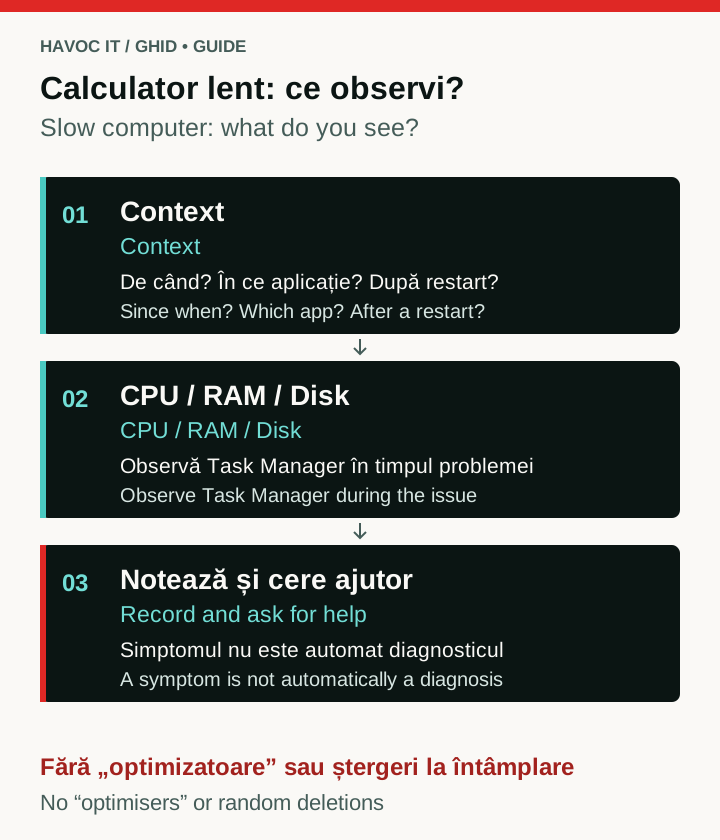 Open the full-size diagram (new tab)
Explanatory diagram with no simulated performance readings. CPU, RAM and Disk are clues to investigate in context, not verdicts or automatic upgrade recommendations.
When did you last restart your computer?
It sounds too simple a question to matter. Yet it is one of the first worth asking.
We once had a user who complained that their PC had become slower and slower. When we asked when it had last been restarted, the answer was about a month ago.
That does not mean every computer left running for a month will perform badly. Over time, however, processes can get stuck, applications can stop releasing memory properly, services can stop working as they should, or updates can be left waiting for a restart.
There is also a Windows detail worth knowing: Restart and Shut down are not always the same thing. If Fast Startup is enabled, Windows can preserve part of the system state at shutdown so that it starts more quickly next time. Restart performs a full restart.
Before moving on to more complicated investigations, give your computer a restart. If the problem disappears for good, that is a good result. If it returns after a few hours or days, the restart has only given us our first clue.
Is the computer slow all the time, or only when you do something specific?
“Running slowly” can describe very different situations. Windows might take a long time to start and then work normally. The browser might be slow while the rest of the computer responds immediately. Or the problem might appear only when you open a particular Excel file, Outlook or an application you use at work.
Before changing anything, try to notice when the problem occurs. If the system is very slow immediately after startup, we look more closely at startup apps, updates and disk activity. If it slows down after a few hours, memory usage, processes left running in the background or temperature could be involved.
If only one program is slow, the problem may be with that program rather than the computer as a whole.
It sounds like a small distinction, but it is one of the most important when diagnosing a problem.
What are your computer's specifications?
Sometimes we try to fix a software problem that is not actually a software problem.
A computer that was very good seven or eight years ago may still work today. In the meantime, though, applications have changed. Browsers do more, Microsoft 365 keeps working in the background, and we have cloud synchronisation, antivirus software, Teams, Outlook and more and more applications open at once.
The processor and RAM matter. You do not need to know the model of every component to make an initial check. Open Task Manager → Performance to see the processor, RAM and type of storage.
If you have 4 GB of RAM and are trying to run Windows alongside a browser, Outlook and several documents, the system may not be faulty. You may simply be asking it to do more than it can comfortably handle.
Do you have an SSD or an HDD?
If we could explain just one hardware difference to a non-technical user, this would probably be it.
An HDD is a mechanical drive. An SSD uses flash memory and can access data much more quickly, especially when Windows needs to read and write lots of small files.
We encountered a computer with Windows 10, 4 GB of RAM and a mechanical HDD that had become extremely difficult to use. There was no longer enough physical memory for the programs running on it, so Windows was relying heavily on the paging file (page file).
The problem was not one thing in isolation, but the combination. When the available RAM is no longer enough, Windows can use disk space to support virtual memory. The disk is much slower than RAM, and the difference is even greater with a mechanical HDD.
In that case, disk activity frequently reached 100%. For the user, the result was simple: click and wait; open a program and wait; switch between two windows and wait again.
If you have an HDD and frequently see Disk 100% in Task Manager, it is worth investigating. Be careful, though: 100% disk activity does not automatically mean that the page file is the cause. It is a clue, not a final diagnosis.
Which programs start automatically with Windows?
Programs accumulate on a computer over time. Some are installed deliberately; others arrive with printers, phone software, Adobe, Teams, OneDrive, Google Drive, launchers and assorted utilities.
Many of them make the same demand: to start automatically with Windows.
We have seen this at a client's office too. The computer had numerous third-party applications configured to start at every sign-in, even though the user did not need them for their daily work.
Open Task Manager → Startup apps. Windows shows you which applications start automatically and may also show their impact on startup.
We do not recommend the “disable everything” approach. Some applications may be needed for security, synchronisation, backup or the company's work. Start by observing: do you recognise the applications? Do you use them? Are there programs you have not opened for months that still start every morning?
Sometimes there is no single program slowing the computer down. There are ten small programs that have all decided they need to start first.
Which processes are using your resources right now?
Startup apps shows us what starts with Windows. The Processes section of Task Manager shows us what is happening while the computer is running slowly.
Start with CPU, Memory and Disk.
You do not need to know every process in the list, and you should not start closing them at random. A process with a name you do not recognise is not automatically something harmful. Windows and applications use many services whose names do not make their purpose obvious.
What matters is the pattern. Does CPU usage stay close to 100%? Is the RAM almost completely full? Does Disk stay at 100% for a long time? Is a familiar application using far more resources than you would expect?
This takes us from “the computer is running slowly” to something concrete: “the computer is running slowly and memory usage is at 95%”. That is where a real diagnosis begins.
How many applications do you use at the same time?
We have encountered a different situation too. The users had Windows 11 and 16 GB of RAM, and were running several Chrome windows and tabs, Outlook, multiple Excel files and Word documents at the same time. Their computers had older processors, however, and the hardware was regularly being pushed close to its limits.
Having 16 GB of RAM does not make a computer underpowered. It is enough for many office tasks. The point is that memory needs to be assessed against the actual workload.
A modern browser can use several GB of RAM. Add Outlook, Excel, Word, OneDrive, antivirus software, Windows and the other applications used in the business, and the available memory can quickly be used up.
The processor matters just as much. An older CPU may be able to run all those programs, but there is a difference between “it can run them” and “you can work comfortably with them all day”.
In our case, after the processors were replaced and more RAM was added, the users stopped reporting performance problems. That does not mean every slow computer needs an upgrade. It means hardware needs to be assessed against what we actually ask it to do.
The browser can be a large part of the problem
For many of us, the browser has become almost a second operating system. We have email, CRM, web applications, WhatsApp Web, documentation, YouTube, portals and all those tabs we keep open because “we'll need them later”.
Chrome and other modern browsers run several processes in parallel. That is normal. Seeing lots of Chrome processes in Task Manager does not automatically mean something is wrong.
However, large numbers of tabs, extensions and complex web applications can consume a substantial amount of RAM and CPU resources. If Task Manager shows the browser taking up a large share of the resources, close the tabs you no longer use and see whether anything changes.
It is not a spectacular technique. That is precisely why it is easy to overlook.
How much free space is left on your C: drive?
Windows needs available space for temporary files, updates, caches, virtual memory and many other internal operations. A drive that is almost full can cause performance and stability problems.
Open This PC and check the space available on the C: drive.
If there is very little free space left, do not start deleting folders from Windows or Program Files because they “look big”. Start with files you recognise: Downloads, the Recycle Bin, very large personal files or the Temporary Files feature in Windows.
If you do not know what can safely be deleted, ask before pressing Delete.
When did you last install Windows updates?
We have also encountered computers whose users had effectively never installed operating system updates.
That does not mean “install the updates and your PC will become fast”. Updates are not a magic performance button.
A system that has fallen far behind may, however, have bugs that have already been fixed, outdated components, compatibility issues or updates trying to download and complete tasks in the background. Beyond performance, updates are essential for security and stability.
In Windows 11, you can check the status under Settings → Windows Update.
If it is a company computer, do not change update policies or manually install drivers or packages from unfamiliar websites. Updates may be managed centrally by your IT department.
Are you still using Windows 10?
In 2026, this question matters.
Standard support for Windows 10 ended on 14 October 2025. The computer does not stop working, but the system no longer receives the updates and support previously provided as standard. Certain Extended Security Updates options exist for eligible systems, but these need to be considered separately.
If your PC has remained on Windows 10 because it does not meet the Windows 11 requirements, that may also be a clue to the age of the hardware.
That does not mean Windows 10 is the reason the PC runs slowly. It means it is worth assessing whether the equipment is still suitable for what it needs to do today.
Does the computer slow down after a few hours?
If it works well in the morning but becomes less and less responsive after a few hours, tell the person investigating the problem. That is very useful information.
An application may be consuming more memory over time, a process may be staying active in the background, or there may even be a temperature problem. A processor that gets too hot can automatically reduce its performance to protect itself.
You do not need to open the computer. Observe its behaviour. Is the fan running loudly almost all the time? Is the laptop much hotter than usual? Does the problem occur every time after a few hours of work?
These details can make the investigation much shorter.
Did the problem appear suddenly or gradually?
One of the best questions you can ask is:
Was the computer working well until yesterday?
A PC that has gradually become slower over the past three years is one case. A PC that worked perfectly on Monday and barely responds on Tuesday is quite another.
If the problem started suddenly, think about what happened beforehand. You may have installed an application, a VPN, antivirus software or a printer. An update may have taken place. You may have added a browser extension or connected a new device.
You do not need to decide for yourself that this was the cause. However, “the problem started immediately after...” is extremely useful information for whoever investigates next.
What NOT to do when your computer is running slowly
Do not start by installing tools such as PC Cleaner, RAM Booster, Registry Cleaner, Driver Updater or One Click Optimizer simply because they promise to speed up your computer.
Some are useless, some add more background processes, and others may come bundled with unwanted software. Likewise, do not start deleting system files, modifying the Registry or closing processes in Task Manager just because you do not recognise them.
Our rule is simple:
observe first, establish the cause, and only then change something.
A good diagnosis is worth more than ten random “optimisations”.
When is it time to call IT?
If the system is still slow and there is no obvious explanation, it is better to stop before you start changing things you do not understand.
In particular, ask for help if the computer freezes completely, restarts unexpectedly, displays blue screens or repeated errors, keeps showing 100% disk activity, runs unusually hot or suddenly becomes much slower. Similarly, if you notice applications you did not install, unusual behaviour or signs that suggest malware, the problem needs investigating.
The good news is that, after working through the checks in this guide, you can provide much more information than “the computer isn't working”.
You can say:
“For the past two days, the computer has been running slowly after about an hour of work. I have restarted it, but the problem comes back. I have 16 GB of RAM, memory usage reaches about 90% with Chrome, Outlook and several Excel files open, and Disk does not reach 100%.”
For the person diagnosing the problem, that makes an enormous difference.
A slow computer is not necessarily a faulty computer
We have encountered a computer that had not been restarted for about a month. We found another loaded with third-party applications that all started with Windows. We have seen Windows 10 running on 4 GB of RAM and a mechanical HDD, where memory pressure and disk activity made almost every operation frustratingly slow.
We have also dealt with computers that had not been updated for a very long time. In other cases, users were running so many applications at once that their hardware, although still working, could no longer comfortably keep up.
The symptom was the same:
“The computer is running slowly.”
The cause was not.
That is why the first useful question is not “What program can I install to make it faster?”.
The question is:
“What is making it run slowly?”
That is where diagnosis begins.
Frequently asked questions
Why is the computer slow immediately after startup?
Common causes include applications that start automatically, Windows Update, file synchronisation and other processes that run immediately after sign-in. Check Startup apps and Task Manager before you start disabling things.
Is 16 GB of RAM enough?
For many office tasks, yes. But it depends on the processor and, above all, how many applications you run at once. Chrome with lots of tabs, Outlook, Excel, Word and other applications can quickly use a large proportion of those 16 GB.
Why does Task Manager show Disk 100%?
There can be many causes: programs doing intensive reading or writing, updates, antivirus software, synchronisation, disk problems or heavy use of virtual memory. Disk 100% is a symptom to investigate, not a cause in itself.
Can an SSD make the computer faster?
If the system still runs from a mechanical HDD, moving to an SSD can make a very large difference when starting Windows and opening programs. However, an SSD does not solve the limitations of an underpowered processor or a shortage of RAM.
Can restarting really solve the problem?
It can resolve temporary problems involving processes, services, memory or updates waiting to finish. If the problem keeps returning, however, the restart has not removed the cause and the system needs investigating.
This guide was written with the help of artificial intelligence, drawing on real experiences and situations encountered by the HAVOC IT team in its technical support work. The technical recommendations were checked before publication; AI was used to organise and write the material.
Sources
Do performance problems keep returning across your team?
IT support starts with the symptoms and how the computers are used, before making changes or replacing equipment.
View outsourced IT support