
HAVOC IT guide
Phishing email: how to check a suspicious message before clicking
Practical checks for senders, attachments and links, plus what to do if you have already clicked.
Published:
You receive an email that appears to come from DIGI. The subject says you have a new invoice, the message looks normal, and the attachment appears to be a PDF. You have received invoices from suppliers dozens of times before, so your first instinct is simple: open the document and see what it is about.
That is the problem with modern phishing. It does not have to look absurd, be full of mistakes, or come from a “prince” promising you money. It only has to look enough like a message you would expect on an ordinary working day.
A phishing email can imitate an invoice, a SharePoint document, a Microsoft 365 notification, a message from your bank, or even a request that appears to come from a colleague. This guide is not meant to turn you into a cybersecurity specialist. It gives you a few simple checks to make before you click, open an attachment, or enter a password.
 Open the full-size diagram (new tab)
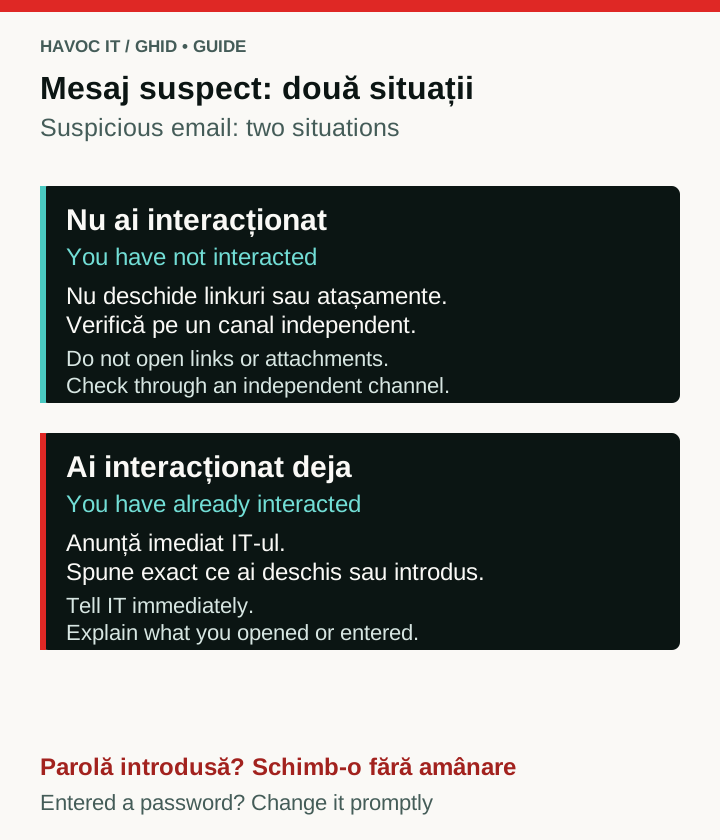
HAVOC IT explanatory diagram. If you ran a file, entered a password or made a payment, go directly to the relevant section and inform IT; do not wait for every check to finish.
First of all: were you expecting that email?
This is probably the simplest check, and one of the most useful.
If you receive an invoice from a supplier your company works with every month, the message is not automatically suspicious. But if you do not handle invoices, the amount seems unusual, or the supplier does not normally send documents this way, it is worth pausing for a few seconds.
The same applies to shared documents. If you receive “Ion Popescu shared a document with you”, first ask yourself whether Ion Popescu was actually supposed to send you something.
Phishing works better when the requested action feels routine.
Check the email address, not just the sender’s name
In your inbox, you might see:
DIGI Romania
Microsoft Support
Accounting
or the name of your company’s director.
The display name does not prove who sent the message.
Open the sender details and check the full address shown. Is it a domain you recognise? Is there an extra letter? A missing letter? A completely different domain? Even an address that looks correct does not, on its own, confirm who sent the message.
An attacker does not necessarily need to copy an address perfectly. It may be enough for someone to see a familiar name and stop checking.
If you have doubts, do not continue just because the logo and signature look professional.
Is it a PDF, or does it only look like one?
This is worth checking a little more carefully.
Suppose you receive what claims to be a DIGI invoice, and the file has a name that looks roughly like this:
Factura_57300932.pdf
It looks normal.
But a file can be named so that .pdf appears in its name while the actual extension at the end is something else entirely.
For example:
Factura_57300932.pdf.bat
That is not a PDF document.
.bat is a file type that can run commands in Windows. In an incident investigated by HAVOC IT, a file made to look like a PDF actually had the .bat extension, launched PowerShell in the background, and downloaded another malicious component.
For the user, though, the lesson is much simpler:
check the file’s real extension.
A PDF should end in .pdf, not .bat, .cmd, .exe, .scr, or another executable extension. A .pdf extension does not, however, guarantee that the file is safe.
Does Windows hide file extensions? It is worth showing them
In Windows, extensions for some file types may be hidden, making it harder to tell a document from an executable program.
You can turn on their display in File Explorer:
View → Show → File name extensions
You will then see the full file name.
It is a small change, but in a business environment it can make the difference between:
factura.pdf
and:
factura.pdf.bat
The two files may look similar at a glance, but they do very different things.
A file that comes “from DIGI” is not automatically safe
There are two different questions:
Does the email look as though it comes from DIGI?
and:
Does the email actually come from DIGI?
A logo can be copied. An invoice layout can be copied. A signature can be copied. Even the wording of a legitimate message can be reproduced.
So if something is unusual, check the sender and the context.
Does your company normally receive invoices through a portal? Does the supplier usually send a straightforward PDF, but this time you have received a ZIP archive? Did the message arrive at an address that is not used for billing?
There is no single sign that proves an email is phishing. Most often, several small things do not add up.
Check where a link leads before you click
A button might say:
Download invoice
or:
View document
but the button text and its actual destination are two different things.
On a computer, you can hover over a link without clicking. Your browser or email application may show its initial address. That does not guarantee the final destination: the link may redirect you elsewhere.
Pay particular attention to the domain.
If a message claims to come from Microsoft but sends you to a completely different domain, do not continue. If your bank asks you to “confirm your account urgently” on a site you do not recognise, visit the bank’s official website separately, rather than following the link in the email.
The same rule applies to suppliers.
If you need to check an invoice, it is safer to go to the supplier’s portal yourself than to follow a link that has already raised questions.
“A document has been shared with you” is one of the easiest stories to copy
Microsoft 365, SharePoint, OneDrive, and Google Drive are part of everyday work for many companies.
You receive a message:
A document has been shared with you.
You click.
A page that looks like Microsoft appears.
It asks for your password.
This is exactly where you need to stop if something does not feel right.
Ask yourself whether you were expecting the document. Check the domain in your browser’s address bar. If you have doubts, open Microsoft 365 or SharePoint separately using the address you normally use and look for the document there.
A fake sign-in page can look almost identical to the real one.
Urgency is a signal, not proof
“The invoice is overdue.”
“Your account will be closed today.”
“You must confirm your password within 30 minutes.”
“Payment must be made immediately.”
Urgent messages are part of normal business too. The problem arises when urgency is used to make you skip checks.
If a message combines time pressure with a password, an unexpected attachment, a payment, or a change to bank details, stop.
The attacker does not need to construct a perfect story.
They only need to get you to act before you check it.
Has the supplier changed its IBAN?
Treat this separately from an ordinary phishing email.
You receive a real invoice, or one that appears real. The company details are correct. You know the contact person. The only thing that has changed is:
“Please make payment to our new bank account.”
Do not change the payment details based on that message alone.
Call the supplier using a number you already had, or contact them through a channel you know. Do not use a phone number that has just appeared in the suspicious message to confirm it.
In a business, one simple rule can prevent an entire category of incidents:
verify every change of IBAN through a second channel.
Does the email really come from a colleague?
It might.
If an email account has been compromised, an attacker can send messages from the person’s real address. They may even have access to earlier conversations and continue an existing thread.
That is why a correct address is not an absolute guarantee.
If your finance director has never asked you to buy gift cards but writes today saying they need them urgently, check.
If a colleague unexpectedly sends you an unusual file, ask them on Teams or call them:
“Did you send me this?”
Sometimes the best cybersecurity measure takes ten seconds.
Do not open an attachment just to see what it is
“I will open it, and if it looks suspicious, I will close it.”
That is not a good strategy.
With an ordinary document, nothing may happen. But if the file is executable or exploits a vulnerability, opening it may be exactly the action the attack needs.
In the technical incident mentioned earlier, the file disguised as a PDF was built to launch PowerShell in the background, decode commands, and download an additional stage into the user’s profile.
The user does not need to know what PowerShell is or how code is loaded into memory.
They only need to know the rule:
if the attachment is unexpected and something does not add up, do not open it.
The file is on Google Drive. Does that mean it is safe?
No.
Google Drive, OneDrive, Dropbox, and other legitimate services host files for millions of users. A link to a familiar platform does not automatically mean that a file hosted there is safe.
In the incident analysed by HAVOC IT, the additional malicious component was downloaded using Google Drive.
That does not mean Google Drive is dangerous.
It means only that a legitimate service can be used to distribute a malicious file.
Judge the file and its context, not just the logo of the platform it comes from.
What NOT to do when you receive a suspicious phishing email
Do not click the link “just to check”.
Do not open the attachment “just to see what is inside”.
Do not enter your password on a page opened from a suspicious email.
Do not reply to ask the apparent sender whether the email is legitimate.
Do not call the number in the message if the authenticity of that very message is in doubt.
And do not forward the email to ten colleagues asking:
“Did you get this too?”
If your company has IT support or someone responsible for security, report the message to them.
What if you are not sure?
You do not have to prove that it is phishing.
That is the job of IT or the person who manages security.
Send the message for review, or use the Report phishing feature in your email application if your organisation has configured it.
Explain simply what raised your suspicions:
“I received an invoice, but I was not expecting one.”
“The attachment looks like a PDF, but it has a different extension.”
“The link does not lead to the supplier’s domain.”
“It asks me for my password.”
“The supplier says it has changed its IBAN.”
That is enough to get started.
Have you already clicked?
What matters here is what happened after the click.
If you opened a page and closed it without entering anything, that is different from entering your password.
Downloading a file is different from running it.
If you entered your password, approved an MFA prompt, or opened an executable file, tell IT immediately and explain exactly what you did.
Do not try to hide the mistake.
The sooner the IT team knows, the better its chances of containing the incident.
In a malware incident, rapidly isolating the workstation, resetting credentials, and carrying out a clean reinstall may become necessary when a system compromise cannot be ruled out. In the case analysed by HAVOC IT, the workstation was isolated, Windows was reinstalled cleanly, and the email and NAS passwords were reset to reduce the residual risk.
Have you entered your password?
If you entered your password on a page you later suspect was phishing, do not wait to see whether “something happens”.
Contact IT and change your password using the service’s official website or your company’s procedure.
It may also be necessary to revoke active sessions, check MFA methods, and review other accounts accessible from that computer. If you used the same password elsewhere, those accounts must be addressed separately.
Do not delay changing the password until every session has been checked. Contact IT immediately; the team coordinates session revocation and the remaining checks alongside urgent steps to protect the account.
Have you received an MFA request you did not initiate?
Do not approve it.
If you are not trying to sign in at that moment, an unexpected MFA request should be treated as suspicious.
It may mean that someone already has your password and is trying to get past the second authentication factor.
Reject the request and tell IT.
MFA is not a window you should close by pressing “Approve”. It is the last step meant to stop unauthorised access.
Have you already made the payment?
If you have made a payment and then discover that the bank instructions were false, the situation is urgent.
Contact the bank and the person responsible for finance in your company immediately. At the same time, tell IT so it can check the accounts and emails involved.
Do not wait until the next day to see whether the money comes back on its own.
In these situations, time really matters.
Phishing does not have to be perfect
A phishing email does not have to convince you that it is 100% genuine.
It only has to convince you enough to take the next step.
Open the invoice.
Enter your password.
Approve MFA.
Change the IBAN.
Make the payment.
That is why the defence is not to turn every employee into an IT security specialist. It is to build a few simple, repeatable habits.
Was I expecting this message?
Is the sender’s address correct?
Is the file really what it appears to be?
Does the link lead where it should?
Is this request normal for that person?
And when something does not add up:
check before continuing.
Quick phishing email checklist
Before clicking or opening an attachment, check:
- were you expecting the message?
- do you recognise the sender’s displayed email address?
- is the domain spelled correctly?
- does the attachment have the correct extension?
- does the link lead to the domain you expect?
- is the message trying to create urgency?
- does it ask for your password or other sign-in details?
- does it ask for money or a change of IBAN?
- is the request normal for that person?
- can you confirm it through another channel?
If any of these checks raises questions, you do not have to find the answer on your own.
Stop and ask someone to check the message.
Frequently asked questions
How can I tell whether an email is phishing?
There is no single sign. Check the sender, domain, links, attachments, context, and the action the message is trying to get you to take.
Can a PDF contain malware?
Yes, documents can be used in attacks, but a file may also only appear to be a PDF. That is why it is important to check the file’s full extension.
What does factura.pdf.bat mean?
It means the file is not a PDF. Its real extension is the last one, .bat, which denotes an executable Windows script.
Is a link safe if it is on Google Drive or OneDrive?
Not automatically. The service may be legitimate, but the content uploaded to it may belong to an attacker.
Can I open an attachment if my antivirus does not flag it?
The absence of an alert is no guarantee. If the attachment is unexpected or has a suspicious extension, check it with IT before opening it.
What should I do if I have already opened the attachment?
Stop working and tell IT. Explain exactly which file you opened and what happened afterwards. Do not try to solve the problem yourself by deleting the file.
What should I do if I entered my password?
Tell IT immediately and change your password through the official service. It may also be necessary to revoke active sessions and check MFA.
From the IT Journal
In a separate project, we documented how we organised identities and email in a Microsoft 365 migration, including the limits of email authentication. This is a management and migration story, separate from the phishing incident described in this guide.
This guide was drafted with the help of artificial intelligence, based on HAVOC IT’s technical experience and standard security practices for business environments. AI was used to structure and write the material.
Sources
Do suspicious messages keep reaching your team?
Security management covers access, email, endpoints and incident triage within the agreed scope.
View our networks and security service